
Google speech provider
A Google speech provider lets Live Hub use your Google Cloud service account for speech-to-text (STT), text-to-speech (TTS), or both.
Google's advanced configuration parameters are set on a bot connection rather than on the provider. See Configure advanced parameters at the bot connection level.
Add a Google speech provider
To add a Google speech provider:
-
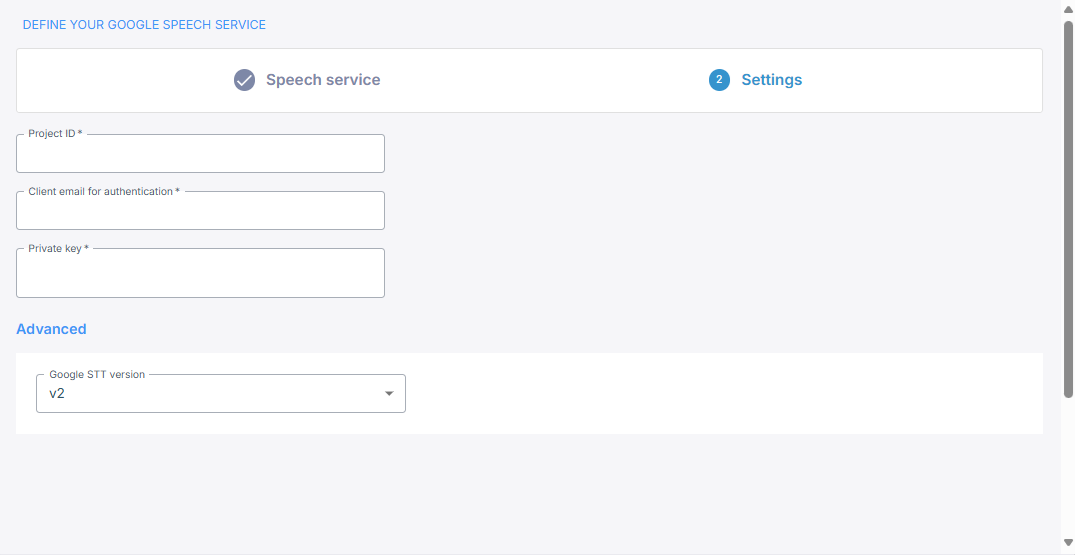
In the 'Project ID' field, enter the Google Cloud project ID.
-
In the 'Client email for authentication' field, enter the service account's email address, the
client_emailvalue from its JSON key file. -
In the 'Private key' field, enter the
private_keyvalue from the same file, including the-----BEGIN PRIVATE KEY-----line.See Google's documentation on creating service account keys if you do not have one yet.
-
For speech-to-text, under Advanced, leave 'Google STT version' at v2 unless you need v1. You cannot change the version after you create the provider.
-
Click Create.
Configure advanced parameters at the bot connection level
Google's advanced configuration parameters go under sttPassthruConfig and
ttsPassthruConfig in the JSON editor on the bot connection's Advanced tab, and
Live Hub merges them into the request it sends to Google. See
Manage bot connections.
Speech-to-text
The structure of the speech-to-text parameters depends on the API version the provider was
created with. The full set is StreamingRecognitionConfig in Google's
v1
or
v2
API documentation.
On v1, the configuration takes this form:
{
    "sttPassthruConfig": {
        "interimResults": false
    }
}
On v2, the same setting is nested and plural:
{
    "sttPassthruConfig": {
        "streamingFeatures": {
            "interimResults": false
        }
    }
}
Speech-to-Text v2 also supports
recognizers, which are
stored, reusable recognition configurations that you can share across bot connections.
Name one with sttRecognizerId, alongside sttPassthruConfig rather than inside it:
{
    "sttRecognizerId": "projects/my-project/locations/global/recognizers/my-recognizer"
}
Text-to-speech
The full set of text-to-speech parameters is SynthesizeSpeechRequest in
Google's TTS API documentation.
{
    "ttsPassthruConfig": {
        "audioConfig": {
            "effectsProfileId": ["telephony-class-application"]
        }
    }
}
voice.name and voice.modelName have no effect: the voice and the model come from
the bot connection.
Streaming text-to-speech
Setting googleTtsStreaming to true streams the text and the audio at the same time,
which shortens the pause before the caller hears anything. It works only with Google's
Chirp 3 HD and Gemini voices.
When streaming is on, the request is a StreamingSynthesizeConfig rather than a
SynthesizeSpeechRequest: the audio settings go under streamingAudioConfig instead of
audioConfig, alongside advancedVoiceOptions and customPronunciations. The full set
is in
Google's streaming TTS API documentation.
{
    "googleTtsStreaming": true,
    "ttsPassthruConfig": {
        "advancedVoiceOptions": {
            "enableTextnorm": true
        }
    }
}
Language and voice
You select the language and the voice per bot connection, on its Settings tab, not on the provider. See Manage bot connections.